01
Open Active users
Open your admin portal and select Add a user from the user list.
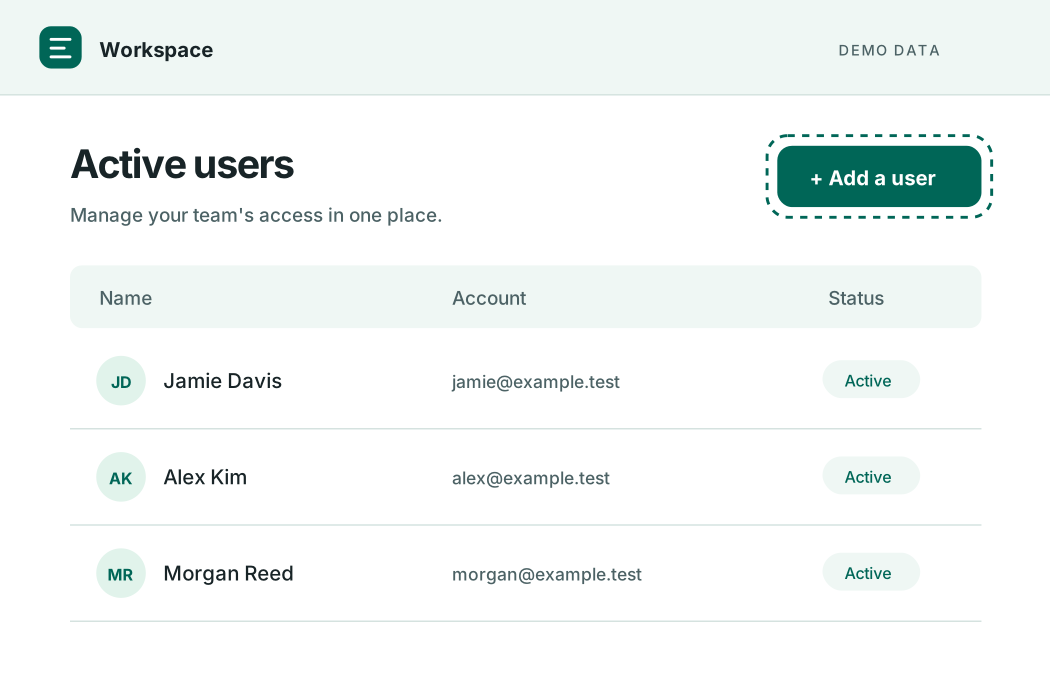
Capture this with supported click recording, or use Capture step manually.
 RunbookPack
THE PRODUCT, IN PRACTICE
Explore a finished runbook, then see every tool that helps you create one. All account details and screens below are illustrative.
BEHIND THE GUIDE
Start recording, add any other tabs you need, and capture extra steps manually. Check the recording status in the popup, then stop when finished.
Review the current guide or switch to an earlier one. Start a new guide for a separate procedure. Drafts stay in your browser.
Update titles and instructions, move or delete steps, and draw redaction boxes over sensitive details. Undo boxes or cancel before saving; a saved redaction replaces the screenshot.
Choose an optional ZIP filename and download the guide with editable HTML and images. Open the extracted guide offline or bring the content into your wiki.
Open your admin portal and select Add a user from the user list.
Capture this with supported click recording, or use Capture step manually.
Enter Taylor Reed and taylor.reed@example.test, then select Create user.
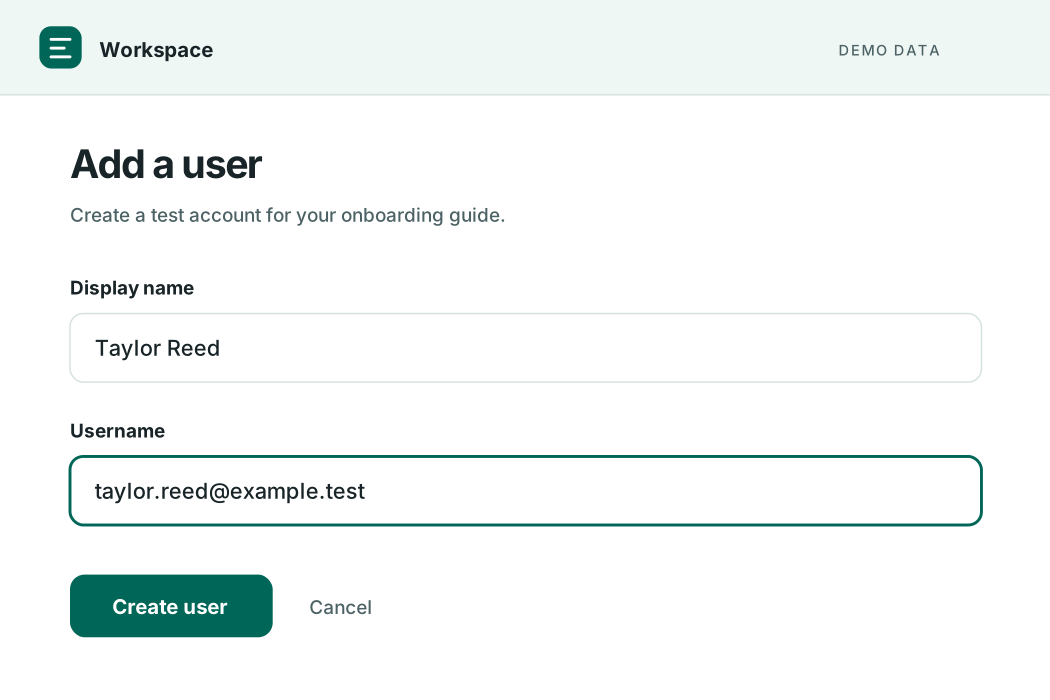
Rewrite the step title and instructions in My guides. Redact sensitive details before sharing.
Check that the confirmation names the test user you just created. The workflow is complete when the success message appears.
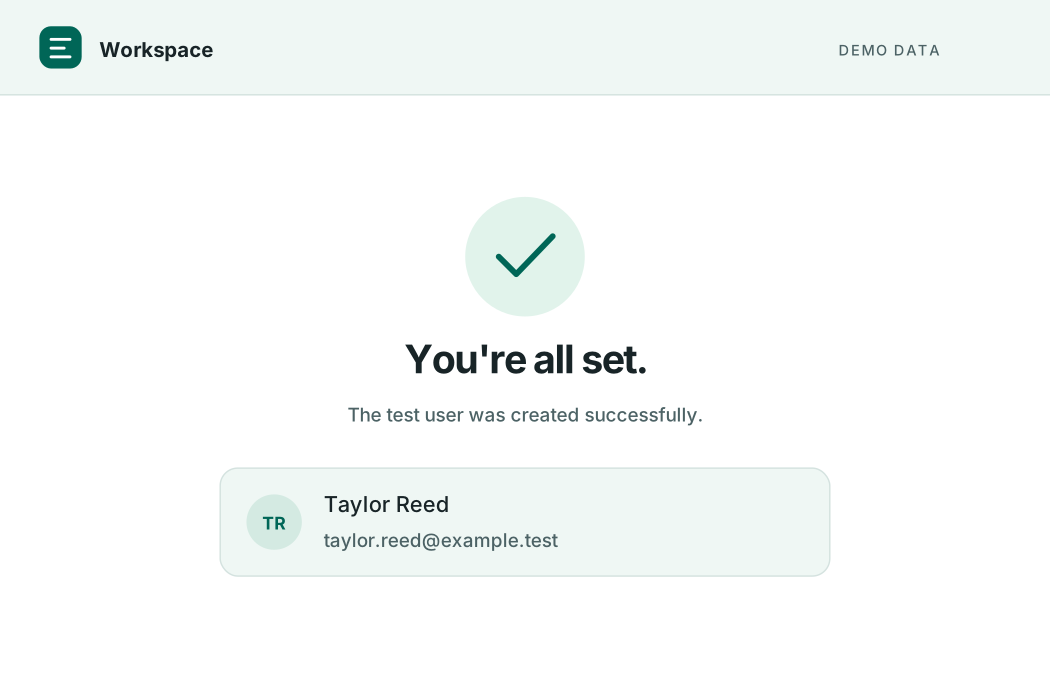
Remove unnecessary captures and move steps into the order your reader should follow.
THE FINISHED PACKAGE
Editable HTML + screenshot images
This page demonstrates the output. Recording, editing, redaction, and ZIP downloads are available inside the Chrome extension.
02 / INSIDE THE EXTENSION
Explore what Runbook Pack already does, from the toolbar popup to My guides and the screenshot editor.
RECORD & CAPTURE
01Capture screenshots after supported button and link clicks on regular web pages.
Save the current browser viewport whenever a step needs extra context.
Add another tab to the current recording when your workflow spans multiple pages.
Check included tabs, recording notices, and missed-capture counts from the popup.
SAVE & ORGANIZE
02Start a fresh draft while keeping earlier guides in your local library.
Switch between the current guide and previous guides from My guides.
See saved step titles, screenshots, and the step count directly in the popup.
Captures and edits are stored locally in your browser until you export them.
EDIT & PROTECT
03Rewrite each step in your own words. Changes save to the local guide.
Move a step up or down, or delete an unnecessary capture.
Drag solid boxes over sensitive details before sharing your guide.
Undo the last box or cancel the edit. Saving permanently replaces that screenshot in the guide.
EXPORT & SHARE
04Package the guide and screenshot image files together in one download.
Give the download a recognizable name, or keep the generated default.
Export numbered steps, instructions, and screenshots as an HTML guide you can modify.
Unzip and open the guide locally, or bring its text and images into your documentation tool.
READY FOR YOUR OWN WORKFLOW?